
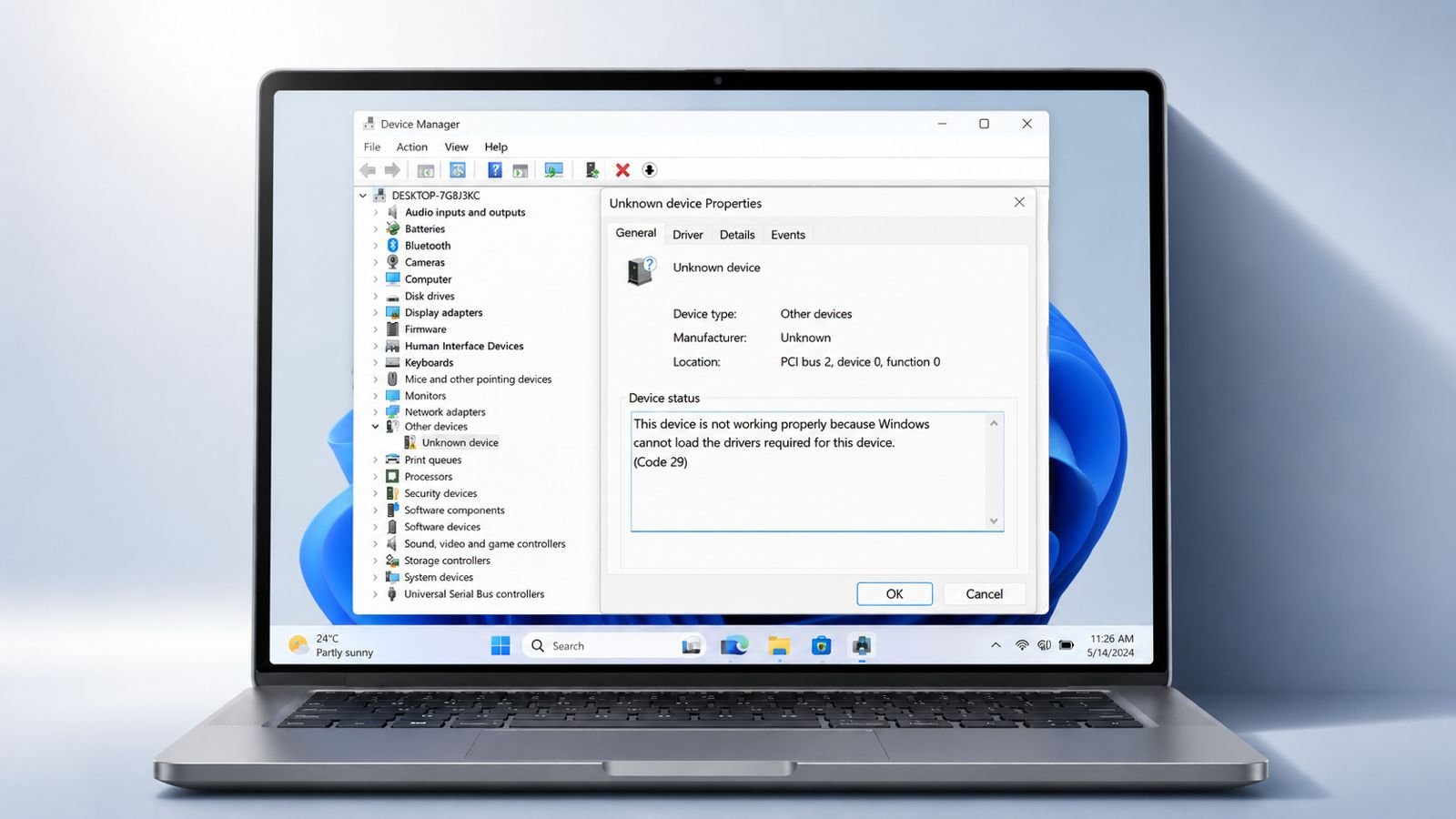

Fix Code 29 Errors quickly before hardware problems grow. This error can disable important computer devices completely.
Windows detects the device but cannot use it. Thankfully, several easy solutions can restore normal operation.
Fix Code 29 Errors: Understanding This Device Problem
Code 29 is a Device Manager error. It appears when Windows detects installed hardware. However, the device remains disabled or unavailable.
The error often displays this message: “This device is disabled because the firmware failed. Required resources were not provided. (Code 29)”
You can find this message easily. Open Device Manager and check device properties. The Device Status area shows error details.
This problem can affect almost any hardware. However, some devices experience it more frequently.
Commonly affected devices include:
- Sound cards
- Graphics cards
- Network cards
- USB controllers
- Motherboard integrated devices
The error appears on many Windows versions.
Supported systems include:
- Windows XP
- Windows Vista
- Windows 7
- Windows 8
- Windows 10
- Windows 11
Why This Error Appears
Several different issues can trigger Code 29.
Common causes include:
- Outdated device drivers
- Corrupted hardware components
- Failed driver update attempts
- Incorrect BIOS configuration
- Disabled hardware settings
- Missing hardware resources
- Firmware communication issues
The BIOS manages hardware resources carefully. It provides instructions during computer startup. BIOS also loads important hardware settings.
When BIOS settings become incorrect, problems appear. Devices may stop receiving required resources. As a result, Windows reports Code 29.
Common Symptoms You May Notice
This error creates several noticeable problems.
You may experience:
- Sound suddenly stops working
- Graphics performance becomes unstable
- Internet connections stop functioning
- USB devices become unavailable
- Hardware appears disabled
- Device Manager shows warning symbols
Because hardware becomes unusable, fixing this error quickly is important.
Start With Basic Solutions
Most troubleshooting should begin with simple fixes.
Restart Your Computer First
A temporary hardware fault may exist. These faults sometimes disappear after restarting.
Restart the computer completely and carefully. Then check whether the error remains. Many users solve the problem this way.
Use System Restore
Recent changes sometimes trigger hardware issues. System Restore can reverse those changes. It returns Windows to an earlier state.
This solution works well when:
- New software caused conflicts
- Settings recently changed
- Drivers created new problems
System Restore protects important personal files. However, system settings return to older versions.
Update Device Drivers
Driver problems commonly cause Code 29. Drivers help Windows communicate with hardware. Outdated drivers may stop functioning correctly.
To update drivers:
- Open Device Manager
- Locate the affected device
- Visit manufacturer websites
- Download compatible drivers
- Install updated versions
- Restart the computer
Always select drivers matching your Windows version.
Use Driver Update Software
Some users struggle finding correct drivers. Automated driver tools can help significantly. These programs scan attached hardware automatically.
They locate newer driver versions online. Installation usually requires only a few clicks. This approach reduces manual searching considerably.
Roll Back Recent Driver Updates
New drivers occasionally create compatibility problems. If Code 29 appeared after updating, rollback helps.
Rolling back restores the previous driver version. Earlier versions may function more reliably. This process often resolves sudden hardware failures.
Reinstall Device Drivers Completely
Driver updates and reinstalls differ greatly. A complete reinstall removes existing driver files. Windows then installs everything from scratch.
Follow these steps:
- Open Device Manager.
- Remove affected hardware.
- Uninstall related drivers.
- Restart the computer.
- Allow Windows reinstall drivers.
Fresh installation removes damaged driver configurations.
BIOS and Hardware Solutions
When drivers appear normal, check BIOS settings.
Enable Devices Inside BIOS
Code 29 often appears after disabling hardware. The BIOS contains device control options. Many motherboard features can be enabled there.
Examples include:
- USB controllers
- Integrated audio
- Network adapters
- Expansion slots
Enter BIOS during startup. Locate disabled hardware settings. Enable the device and save changes. Motherboard manuals explain BIOS navigation clearly.
Check Hardware Jumpers and Switches
Some motherboards contain physical controls.
These controls may include:
- Hardware jumpers
- DIP switches
Incorrect settings can disable hardware completely.
Consult motherboard documentation carefully. Verify every required switch position.
Clear CMOS Settings
CMOS stores BIOS settings and information. Incorrect CMOS values may cause Code 29. Resetting CMOS restores factory default settings.
Benefits include:
- Removing incorrect configurations
- Restoring original settings
- Fixing resource allocation issues
Many BIOS systems provide default options.
Look for settings named:
- Load Setup Defaults
- Load Default Settings
- Restore Factory Defaults
Save changes after loading defaults.
Replace the CMOS Battery
Sometimes CMOS battery failure causes problems. A weak battery may lose settings repeatedly. This creates BIOS configuration issues.
Replacing the battery may solve persistent errors. The replacement process remains relatively simple. Most desktop computers use standard batteries.
Update the BIOS Carefully
Older BIOS versions occasionally create hardware issues. Manufacturers release BIOS updates periodically. These updates improve compatibility and stability.
Before updating:
- Confirm motherboard model
- Download correct BIOS version
- Follow official instructions
- Back up important information
BIOS updates require extreme caution. Interrupted updates may damage the motherboard. Always read manufacturer instructions thoroughly.
Advanced Hardware Recovery Methods
Some situations require deeper troubleshooting.
Reinstall the Hardware Device
Remove all related software completely. Then reinstall and reconfigure the hardware.
This process refreshes communication settings. It may restore proper hardware operation. Many stubborn problems disappear afterward.
Reseat Expansion Cards Properly
Expansion cards can loosen over time.
Common examples include:
- Graphics cards
- Sound cards
- Network cards
To reseat the card:
- Turn off the computer.
- Disconnect electrical power completely.
- Open the computer case.
- Remove the expansion card.
- Insert it carefully again.
- Secure the card properly.
You may also try another slot. Poor connections often trigger hardware errors.
Test Hardware Elsewhere
Before replacing expensive components, perform testing. Install the device inside another computer.
If problems continue there, hardware failure exists. If the device works normally, investigate further. This step prevents unnecessary replacement costs.
Repair Windows System Files
Damaged Windows files sometimes create hardware issues. Repair tools restore important operating system files.
Healthy system files improve hardware communication. This solution may resolve persistent Code 29 errors.
Perform Clean Windows Installation
Use this option only when necessary. A clean installation removes existing Windows files. It creates a completely fresh environment.
Before beginning:
- Back up personal files
- Save important documents
- Prepare installation media
This process deletes existing system content. Many software-related problems disappear afterward.
Replace Faulty Hardware
Hardware replacement becomes necessary sometimes.
Consider replacement when:
- Every solution fails
- Testing confirms hardware failure
- Components remain completely unresponsive
You can replace hardware personally. Professional repair services remain another option. A technician can verify hardware failure accurately.
The Bottom Corner
Fix Code 29 Errors using simple troubleshooting methods first. Start with restarting and updating drivers carefully.
Then check BIOS settings and hardware connections. Most cases involve disabled devices or resources.