
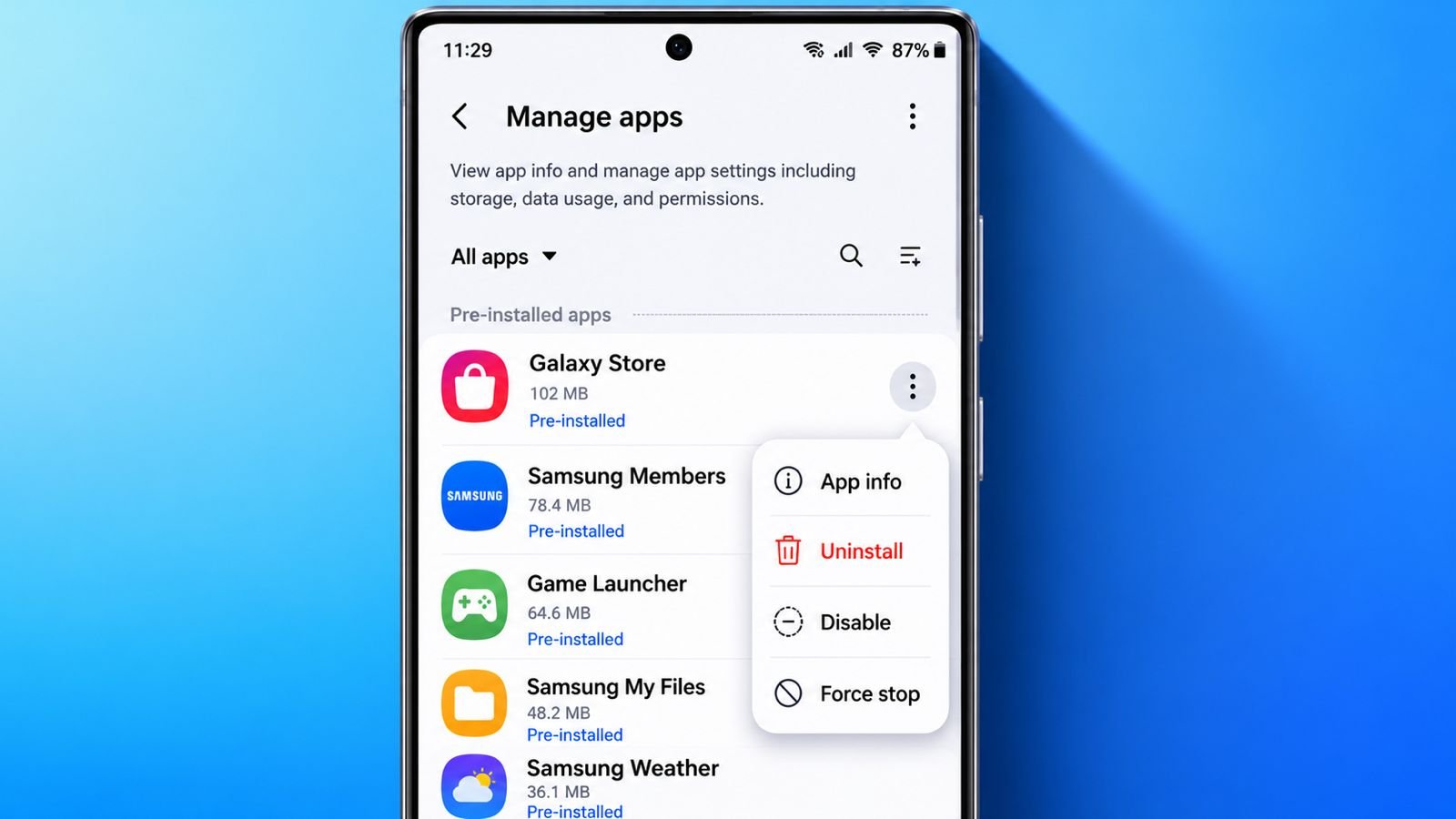

Delete Pre-Installed Apps on Android to free space. Many Android phones include apps users never need. These apps often consume storage and battery resources.
Some apps can be removed completely with ease. Others require disabling because removal remains restricted.
Remove Pre-Installed Apps on Android Through Settings
Many Android devices support app removal directly. The Settings application provides the easiest method available. Most users can complete this process quickly.
Why Remove Unwanted Apps?
Unused applications create unnecessary clutter on devices. Every application occupies valuable storage space available.
Some apps consume battery power continuously. Others run background processes without user awareness.
Removing unnecessary apps offers several important benefits:
- Creates a cleaner home screen appearance.
- Frees storage space for useful content.
- Reduces battery consumption during daily usage.
- Lowers unnecessary processor activity significantly.
- Helps reduce possible security vulnerabilities.
- Improves overall device organization and usability.
Many users prefer alternative applications for services. Some people avoid specific weather applications completely.
Others use different email providers than Gmail. Many users never open pre-installed shopping applications.
Steps to Remove Apps Using Settings
Follow these simple steps carefully below:
- Open the Settings application first.
- Tap the Apps option available.
- Some phones require opening General first.
- Then select Apps and notifications.
- Find the unwanted application listed there.
- Tap the application name once.
- Select Uninstall from available options.
- Tap OK to confirm removal.
The application should disappear after completion.
When Uninstall Option Is Missing
Some applications cannot be removed completely. Android protects certain applications from deletion. These apps often support device functionality.
You may notice these situations:
- The uninstall button appears greyed out.
- The uninstall option completely disappears.
- App remains after attempted removal.
Write down these application names immediately. You may need disabling methods later.
Delete Through Google Play Store
Google Play Store provides another removal option. Many users find this method convenient. The process requires only a few taps.
Removing Apps Using Play Store
Follow these easy instructions carefully:
- Open Google Play Store first.
- Tap your profile image icon.
- Some devices show menu lines instead.
- Select Manage apps and devices.
- Tap Manage or Installed section.
- Choose the application for removal.
- Tap Uninstall to begin the process.
- Confirm by selecting Uninstall again.
The application should be removed successfully.
Why Use Google Play Store?
The Play Store offers additional management features. Users can view installed applications easily. It helps organize applications from one location.
Benefits include:
- Quick access to installed applications.
- Easier app management and organization.
- Fast uninstall process for many apps.
- Convenient update management features.
System Apps Behave Differently
Some system applications resist complete removal. Uninstalling may remove only installed updates. The original application often remains available.
This happens because Android protects system software. Manufacturers include these apps for specific purposes.
If this occurs:
- Note application names carefully.
- Prepare to disable them later.
- Remove updates whenever possible.
Managing Android App Updates
Google Play Store also manages updates.
To update applications manually:
- Open Google Play Store.
- Visit My apps and games.
- Open the Updates section.
- Tap Update beside applications.
- Or select Update all.
To enable automatic updates:
- Open Play Store settings.
- Choose the Auto-update apps option.
- Select preferred update settings.
Downloading New Applications
Installing applications remains very simple.
Follow these quick steps:
- Open Google Play Store.
- Search for the desired application name.
- Open application listing page.
- Tap Install to download.
Installation begins automatically afterward.
Remove By Disabling Bloatware
Some applications cannot be removed permanently. These applications are often called bloatware.
What Is Bloatware?
Bloatware refers to unwanted pre-installed software. Manufacturers install many applications before purchase. Mobile carriers also include additional applications.
Common examples include:
- Shopping applications never used.
- Brand-specific service applications.
- Extra utility applications.
- Promotional software packages.
- Unwanted entertainment applications.
Many users never open these applications.
Benefits of Disabling Bloatware
Disabling applications offers several advantages.
Important benefits include:
- Stops future application updates completely.
- Prevents background activity from running.
- Saves battery power every day.
- Reduces storage usage from updates.
- Keeps system resources available.
- Limits possible security concerns.
Disabled applications remain inactive afterward.
Steps to Disable Bloatware
Before disabling applications, remove updates first.
Then follow these instructions:
- Open Settings application.
- Tap Apps section available.
- Choose an unwanted application name.
- Open Permissions settings page.
- Disable every granted permission.
- Return to the App Information page.
- Tap Disable option available.
- Read the displayed warning message.
- Select Disable app or OK.
The application becomes inactive immediately.
Why Disable Permissions First?
Permissions allow applications accessing device features. Removing permissions adds another safety layer.
This helps prevent access to:
- Camera functions.
- Microphone controls.
- Location information.
- Contact information.
- Storage files.
This step protects privacy more effectively.
Understanding Warning Messages
Android displays warning messages before disabling. These messages explain possible side effects.
Disabling certain applications may affect others. However, this rarely impacts normal usage.
Most users notice no significant changes afterward. Still, keep records of disabled applications. This information becomes useful later.
How to Re-Enable Disabled Apps
Occasionally users experience unexpected problems. Re-enabling applications often resolves those issues.
Follow these steps carefully:
- Open Settings application.
- Tap Apps section available.
- Select Filter and sort option.
- Enable Show system apps feature.
- Locate disabled application name.
- Open application information page.
- Tap Enable at screen bottom.
The application becomes active again.
Completely Removing Bloatware
Many users want complete bloatware removal. Two common methods exist today.
Method One: Universal Android Debloater
Universal Android Debloater offers easier management. This tool works through a computer connection.
Requirements include:
- USB connection between devices.
- Android Debug Bridge installed.
- Compatible computer system available.
Android Debug Bridge is called ADB. ADB enables communication with Android devices.
Universal Android Debloater helps users choose applications. Selected apps stop running afterward. Many users prefer this safer method.
Method Two: Rooting an Android Device
Rooting provides advanced system permissions. These permissions exceed normal user access.
Root access allows:
- Removing protected system applications.
- Modifying operating system files.
- Accessing restricted system areas.
- Performing advanced customizations.
However, rooting involves serious risks.
Possible risks include:
- Voiding manufacturer warranty protection.
- Creating security vulnerabilities.
- Causing software instability issues.
- Damaging device functionality permanently.
- Making recovery more difficult.
Many experts discourage rooting completely.
Which Method Is Better?
Rooting technically removes applications permanently. However, risks remain very significant.
Universal Android Debloater offers safer management. Disabled applications stop consuming resources effectively.
For most users, disabling remains sufficient. The practical results feel nearly identical.
As We Conclude
Deleting Pre-Installed Apps on Android saves resources and reduces unnecessary activity.
Universal Android Debloater provides additional management options. Avoid rooting because risks often outweigh benefits.