
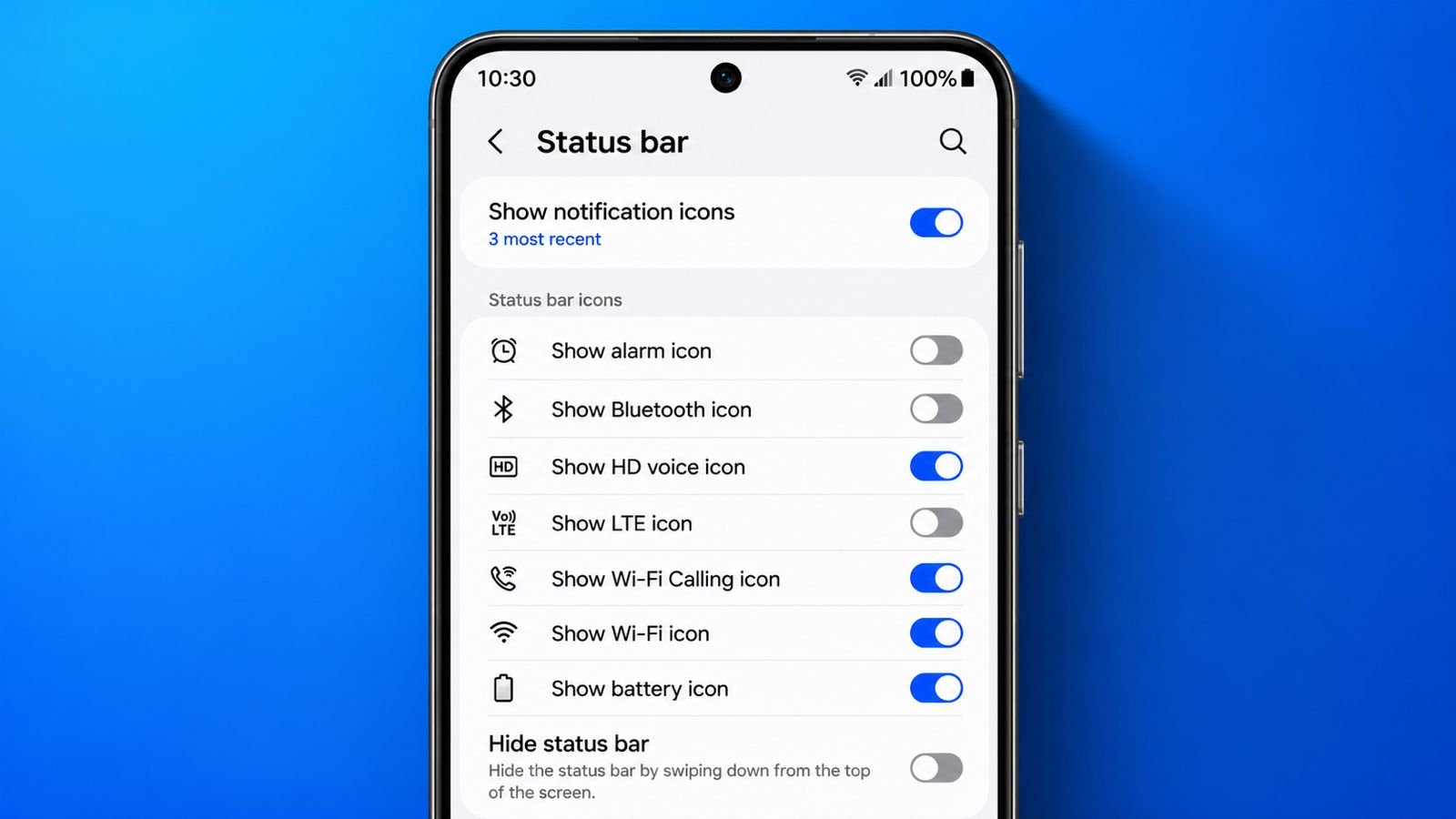

Remove Android Status Bar Icons for cleaner screens. Many icons appear and stay unnecessarily long. Android offers several simple ways to manage them.
You can clear alerts, disable notifications, or hide icons. These methods help create a cleaner viewing experience.
Remove Android Status Bar Icons by Managing Notifications
Android notifications often create status bar icons. Managing notifications removes many icons quickly.
Understand How Notification Icons Appear
Android displays icons whenever notifications arrive. These icons appear inside the status area.
Every icon represents a specific notification. Opening notifications reveal their complete information.
When Android receives a message, System UI responds. It places notifications inside the Notifications Drawer.
Notifications may contain several useful elements:
- Text messages and updates
- Graphics and images
- Quick controls and actions
- Network and connection information
Many apps use notifications regularly. Therefore, icons can quickly fill available space.
Open the Notifications Drawer
The Notifications Drawer stores all notifications. It provides easy access to alerts.
Swipe downward from the screen’s top edge. The Notifications Drawer opens immediately afterward.
Carefully review every notification before removing anything. Important alerts may still need attention.
Taking a moment to review notifications helps. It prevents accidentally removing useful information.
Dismiss Individual Notifications
After reviewing notifications, remove unwanted ones easily. Swipe notifications toward either screen side. Swipe left or swipe right successfully.
The notification disappears from the drawer. Its matching status bar icon disappears too. This method works for most notifications. It remains the fastest cleanup option.
Use the Clear All Feature
Many users receive countless daily notifications. Removing them individually becomes time-consuming. Android provides a Clear All option.
This feature removes multiple notifications together. Tap Clear All after reviewing alerts.
Most removable notifications disappear instantly afterward. Your status bar immediately becomes much cleaner.
Check Notification History
Sometimes important alerts disappear accidentally. Android includes notification history support.
Follow these simple steps:
- Open Settings on your device.
- Tap Notifications from available options.
- Select Notification History.
- Review dismissed notification records.
This feature helps recover missed information. Users can revisit recent notifications anytime.
Open Notifications Directly from Icons
Every status bar icon connects somewhere. Opening notifications reveal their source application. Tap a notification from the drawer. Android opens the related application automatically.
After opening the application, notifications often disappear. This removes associated icons simultaneously. Some applications provide extra controls.
Music apps commonly offer playback buttons. Users can pause or resume playback. These actions happen without opening applications fully.
Remove from Persistent Alerts
Some notifications behave differently than normal. They remain visible continuously on screens.
Why Persistent Notifications Stay Visible
Persistent notifications usually serve specific purposes. Android uses them for ongoing activities.
Running applications often create these alerts. Background services can also create notifications.
The notification informs users about activity. Therefore, Android prevents simple dismissal sometimes.
Common examples include:
- Active music playback
- Running navigation services
- Fitness tracking applications
- File download activities
These alerts remain visible until activity stops.
Stop Running Applications
Many persistent notifications belong to active apps. Closing the application often solves problems. The related notification disappears afterward.
Some notifications include built-in controls. Look carefully for stop or close buttons. Press available stop controls immediately. The notification should disappear shortly afterward.
Disable Persistent App Notifications
Certain applications always display notifications. These notifications resist normal removal methods. Swipe the notification carefully sideways. A settings gear may appear afterward.
Tap the gear icon immediately. Android opens notification settings directly. Locate the Show Notifications option. Turn the feature off if needed.
Remember an important consideration here. All application notifications may stop afterward. Therefore, review settings carefully beforehand.
Turn Off Notifications Through Settings
Some notifications never display gear icons. Android still provides another solution.
Follow these steps:
- Open Settings.
- Tap Notifications.
- Select App Settings.
- Tap See All if necessary.
- Find the desired application.
- Disable its notification toggle.
The application stops creating notifications afterward.
Customize Notification Categories
Many applications offer notification categories. Users can manage categories individually.
Follow these simple steps:
- Open Settings.
- Tap Apps.
- Select your application.
- Tap Notifications.
- Adjust category settings carefully.
This method provides greater flexibility. Important alerts remain active while others disappear.
Explore Additional Notification Controls
Android includes several notification management tools.
Useful options commonly include:
- Hide sensitive lock screen notifications
- Enable Do Not Disturb mode
- Adjust advanced notification preferences
These settings improve focus significantly. They also reduce unnecessary screen clutter.
Using System UI Tuner
Android includes another useful customization tool. It is called System UI Tuner.
This feature helps hide specific status icons. Users gain greater control over visibility.
Understand the Notification Bar and Status Bar
Many users confuse these sections. However, they serve different purposes. The Notification Bar displays notification alerts.
Icons indicate pending attention requirements. The Status Bar displays device information. It shows operating conditions continuously.
Common Status Bar icons include:
- Wi-Fi connection status
- Bluetooth status indicator
- Mobile network information
- Battery level indicator
- Current device time
- Alarm clock status
- NFC activity indicator
Some icons remain permanently visible. Users may not need constant visibility. For example, NFC icons appear continuously. They provide little additional information.
Unlike Wi-Fi indicators, NFC shows no strength. Unlike Bluetooth, connection details stay limited. Therefore, many users choose hiding them.
Access System UI Tuner on Stock Android
Stock Android devices include this feature. Accessing it requires only several steps.
Follow these instructions carefully:
- Pull down the notification shade.
- Locate the Settings gear icon.
- Press and hold the icon.
- Wait until the animation finishes.
The gear spins during activation. A notification confirms successful activation afterward.
A small wrench icon may appear. This confirms feature availability successfully.
Open System UI Tuner Settings
After activation, access available controls.
Follow these steps:
- Open Settings.
- Scroll completely downward.
- Tap System UI Tuner.
- Select Status Bar.
First-time users may see warnings. Tap Got It to continue.
The warning explains experimental functionality. Android displays it only initially.
Hide Unwanted Status Icons
Status Bar settings remain very simple. Every icon includes a toggle switch. Disable icons you no longer need.
Changes appear instantly after selection. Results become visible in real time.
Users can experiment comfortably. Any change can be reversed immediately. This flexibility makes customization easier.
Use System UI Tuner on Other Android Devices
Many manufacturers use customized Android versions. Samsung devices use One UI. Other brands use their own interfaces.
System UI Tuner may not appear. However, alternatives remain available.
Install a Third-Party Utility
Non-stock Android devices need additional tools. A third-party utility often provides access. Installation usually remains straightforward.
Some methods require ADB commands. Root access may help certain setups. After installation, open the utility. Access the side menu afterward.
Choose the Status Bar section. Enable or disable icons freely. Changes normally happen immediately. Reverting settings remains equally simple.
Is System UI Available Everywhere?
System UI exists on every Android device. It controls interface elements universally.
Manufacturers sometimes add custom layers. Samsung devices use One UI specifically.
Despite custom interfaces, notification systems remain similar. Android tablets also display status icons similarly.
Restore a Missing Status Bar
Sometimes the status bar disappears unexpectedly. One possible solution involves Google Now.
Follow these steps:
- Open Settings.
- Tap Apps.
- Select Google Now.
- Tap Force Stop.
If problems continue, try another solution.
Follow these steps:
- Open Settings.
- Tap Display.
- Select Easy Mode.
- Turn Easy Mode off.
The status bar may return afterward.
Hide the Entire Status Bar
Some users prefer maximum screen space. Stock Android supports broader customization.
Follow these steps:
- Open System UI Tuner.
- Select Status Bar.
- Disable available icon options.
Another option involves immersive mode applications.
Always choose trusted applications carefully. Untrusted software may create security risks.
Understand the Star Status Icon
Some Android devices display star icons. The star indicates Priority Notifications mode. It differs from normal notification modes.
Priority mode allows selected applications only. Other notifications remain limited or hidden.
Users can choose priority applications manually. Notification settings provide these controls.
The Bottom Corner
Remove Android Status Bar Icons using several methods to clear notifications for immediate screen improvements. Disable persistent alerts when they become distracting.
Use System UI Tuner for advanced customization. These settings reduce clutter and improve visibility. Your Android screen becomes cleaner and easier.